 Shifter for macOS
A residential IP for your whole Mac.
Safari, Chrome and every Mac app that follows your network settings use your Shifter plan. Disconnect and your own settings come back as they were.



Change cities without System Settings.
Pick a new location and your Mac reconnects through a residential IP there, with nothing to change in System Settings.
Your whole plan, on your Mac.
Skip the network panel. The app reads your plans, sets the Mac's proxy, then puts yours back when you are done.
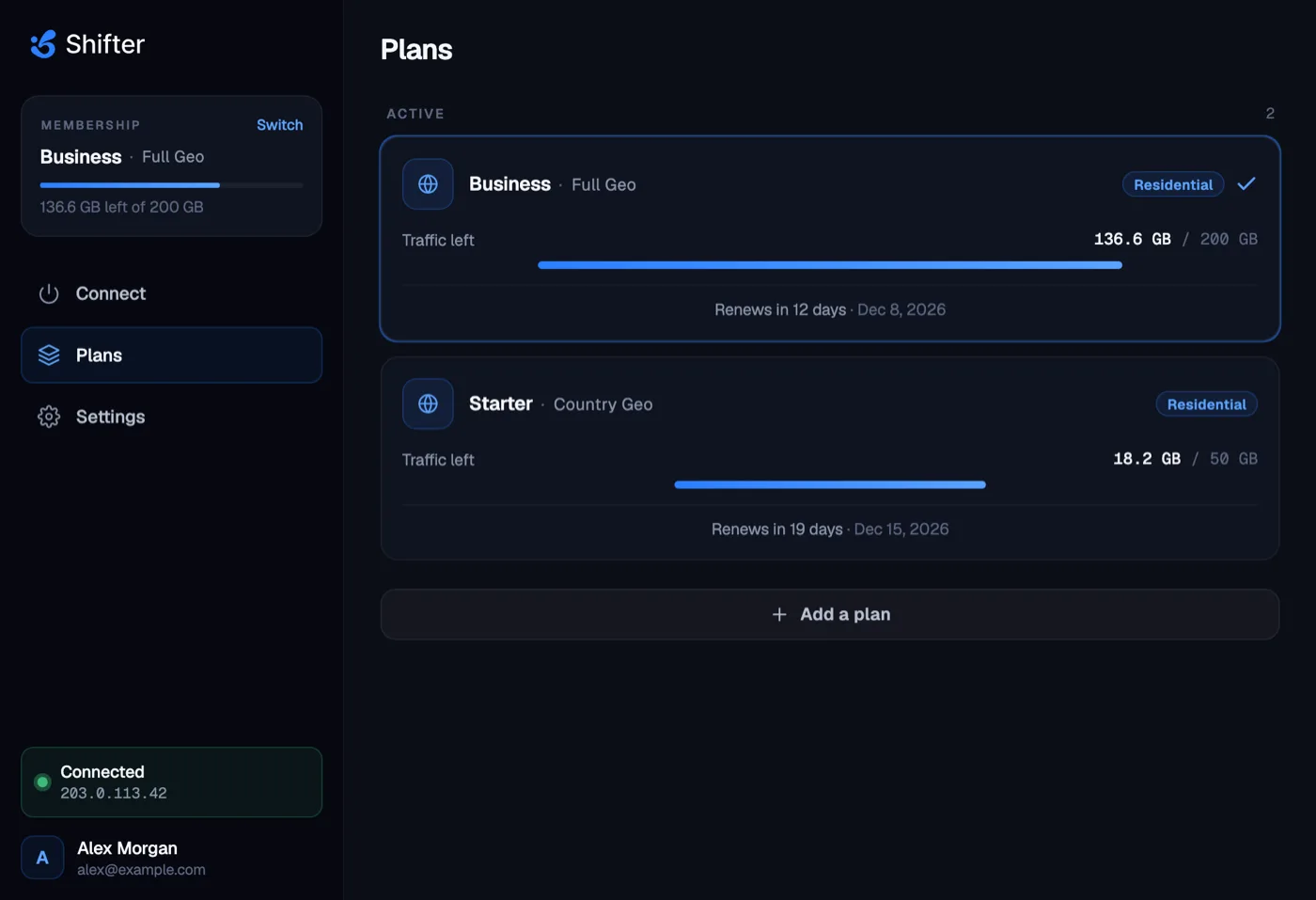
Plans
Every plan, with the traffic left
See your Residential Proxies and ISP Proxies plans with the traffic left on each, and switch plans in one click.
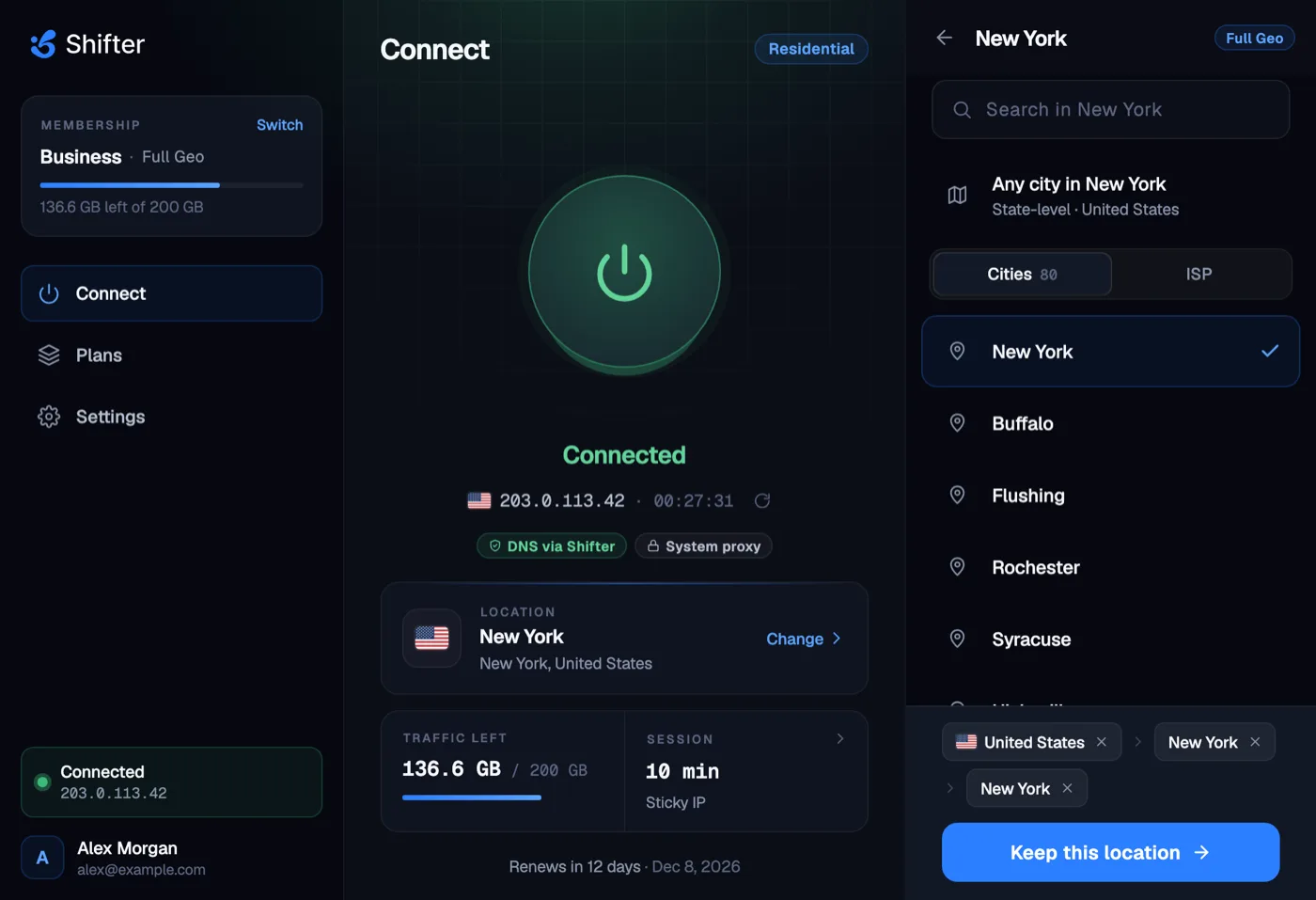
Location
Pick a location your plan supports
What you can target follows the pool of your Residential Proxies plan, and the app only offers what your plan supports.
- Full Geo Country, state, city or ISP (ASN), from one search box.
- Country Geo Any country.
- Non-Geo Random IPs worldwide.
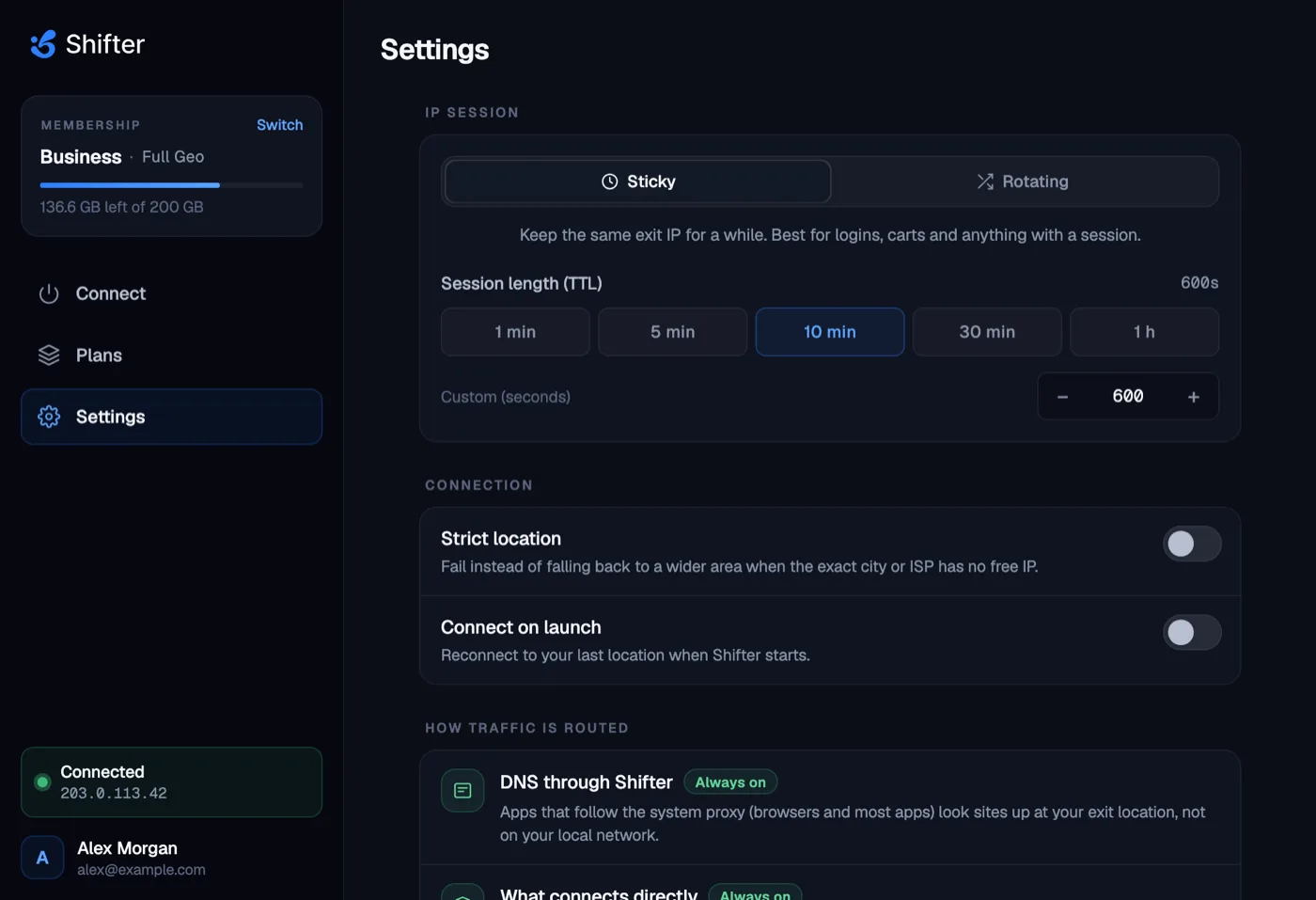
IP session
Sticky IP or a new IP per request
Choose how often your exit IP changes, and rotate it whenever you want.
- Sticky IP One exit IP for 10 minutes, or any length you set.
- New IP per request A fresh exit IP on every request.
- Get a new IP Rotate on demand, with no settings to change.
- Strict location Only IPs from the exact state, city or ISP you picked.
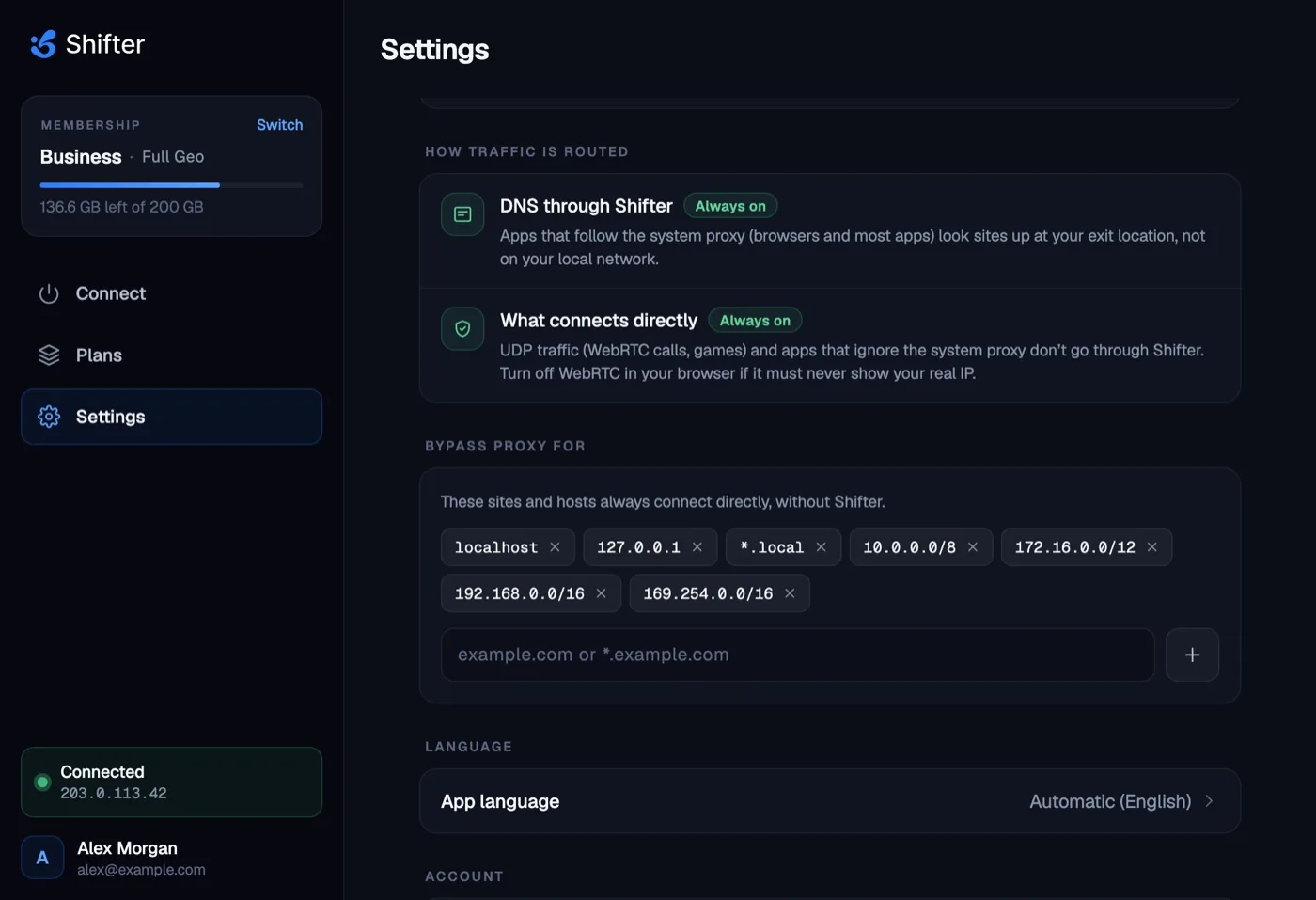
Privacy and control
Your real IP stays out of sight
The app checks where you appear to be, and local traffic stays on your own network.
- Exit check After connecting, the app shows your exit IP and country, checked on IP Info.
- Bypass list Local addresses load directly. Add any domain that should skip the proxy.
 New York
 London
 Frankfurt
ISP IP selection
Choose a static ISP IP from your plan and your Mac stays on it until you pick another one.
Entry points
Let the app use the closest region, or fix one of 8 entry points so your sticky IP survives a Wi-Fi switch.
Restored on disconnect
Your Mac's proxy settings are saved first and put back on disconnect, on quit, and even after a crash.
Set up your Mac in three steps.
Download, sign in with your key, connect. No trip to System Settings.
- 1macOS 12+
Download the app
Get Shifter for macOS and open it. It runs on macOS 12 and later.
- 2Keychain
Add your API key
Paste the key from your Shifter profile. The app keeps it in your Mac's Keychain.
- 3Network proxy on
Choose a location, connect
The app sets your Mac's network proxy for you, and Safari and Chrome follow it.
What you need
- An active Residential Proxies or ISP Proxies plan.
- Your Shifter API key, from your profile.
- A Mac.
Legacy backconnect plans, the Web Scraping API and the SERP API do not work with the apps.
Shifter on your other devices
Frequently asked questions
Do I pay for the Mac app?
Yes. The app is free to install; your traffic counts against your Shifter plan as usual.
Which plans work with the Shifter apps?
Residential Proxies plans on the Full Geo, Country Geo and Non-Geo pools, and ISP Proxies plans. Legacy backconnect plans, the Web Scraping API and the SERP API are not supported.
Where is my API key stored?
Only on your device. The app sends it to Shifter's own API to load your plans and settings, and nowhere else.
Can I keep the same IP while I work?
Yes. Choose Sticky IP to keep one exit IP for the session length you set, 10 minutes by default. On an ISP Proxies plan you can pick one static IP and keep using it.
Is there a browser extension too?
Yes. The Shifter extension for Chrome, Brave, Opera and Firefox has the same features, for when you only need the proxy in your browser.
Put your plan on your Mac.
Install the app, paste your API key and pick a location.
Download for macOS Mac with an Intel chip? Download the Intel version. 97.6
 81.8
 81.1